
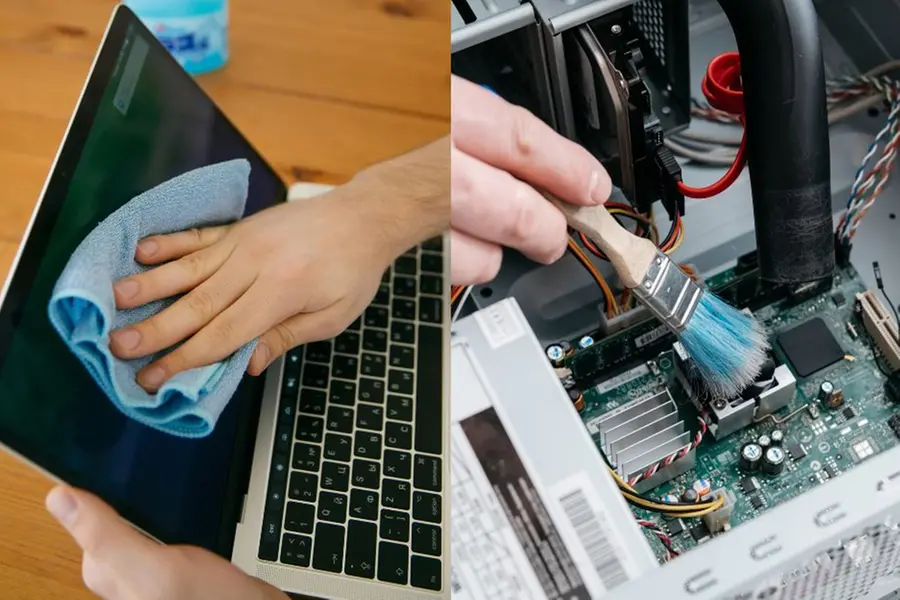
Over time, dust, fingerprints, and grime can build up on your PC or laptop, affecting its performance and longevity. Regular cleaning not only keeps your device looking good but also helps prevent overheating and hardware issues. However, improper cleaning methods can do more harm than good.
To help you clean your PC or laptop safely and effectively, here’s a detailed step-by-step guide.
1. Turn off and unplug your device
- For laptops: Shut down the laptop, unplug the power adapter, and if your model has a removable battery, take it out.
- For desktops: Shut down the PC and unplug it from the power source.
2. Gather the necessary cleaning materials
- Soft microfiber cloths (for wiping down surfaces)
- Screen-safe cleaning solution or distilled water (avoid alcohol-based cleaners on screens)
- Compressed air canister (for blowing out dust)
- Small brush (soft-bristled for delicate areas)
- Cotton swabs or Q-tips (for tight spaces)
- Small screwdriver (optional, for opening the laptop/PC case)
- Anti-static wrist strap (recommended for internal cleaning)
3. Clean the exterior
- Screen: Use a microfiber cloth slightly dampened with a screen-safe cleaner or distilled water. Do not use isopropyl alcohol on screens, as it may damage anti-glare coatings. Avoid excessive pressure.
- Keyboard: Use a dry microfiber cloth to wipe down the keys. Compressed air can help remove dust between keys. For stubborn grime, use a cotton swab lightly dipped in isopropyl alcohol and gently clean the keycaps.
- Touchpad: Wipe the touchpad gently with a slightly damp microfiber cloth, ensuring no excess moisture enters the edges. Dry it with a clean, dry cloth afterward.
- Ports and vents: Use compressed air in short bursts, holding the can at an angle and keeping a few inches away from the device. This prevents condensation from forming inside.
4. Cleaning the interior (for desktops and laptops)
- Laptops: If comfortable doing so, open the back cover. Use compressed air in short bursts to remove dust from fans and vents while holding the fan in place to prevent spinning.
- Desktops: Open the case (refer to your manual if needed). Use compressed air to clean dust from fans, heatsinks, and the power supply. Hold the fans in place while cleaning to avoid damage.
Caution:
- Always ground yourself using an anti-static wrist strap before touching internal components.
- Never touch delicate components directly.
- Do not use excessive compressed air force, as it can damage fragile parts.
5. Clean the mouse and other peripherals
- Wipe down the mouse with a microfiber cloth to remove skin oils and dirt.
- Use compressed air to clean the scroll wheel and seams. Avoid blowing air under the mouse buttons unless the model allows easy cleaning.
6. Reassemble (if applicable)
Once everything is clean and dry, reassemble your laptop or desktop carefully.
7. Optimise your system with software cleaning
To free up space and improve performance, consider:
- Running Disk Cleanup (Windows) or Storage Management (Mac) to remove unnecessary files.
- Using Defragmentation for HDDs (not needed for SSDs).
Safety Tips:
- Avoid using harsh chemicals or water directly on electronic components.
- Never spray compressed air directly into sensitive parts—keep the nozzle at a safe distance.
- Always handle internal components carefully to prevent damage.
By following these steps, you can keep your PC or laptop in top condition and running smoothly. Stay connected with us for more helpful guides!
Compiled by Sandwana P.K
Published: 15 Feb 2025, 11:20 am IST
Disclaimer: Kindly avoid objectionable, derogatory, unlawful and lewd comments, while responding to reports. Such comments are punishable under cyber laws. Please keep away from personal attacks. The opinions expressed here are the personal opinions of readers and not that of Mathrubhumi.
