How to use your Android phone as a webcam on Windows 11: A step-by-step guide
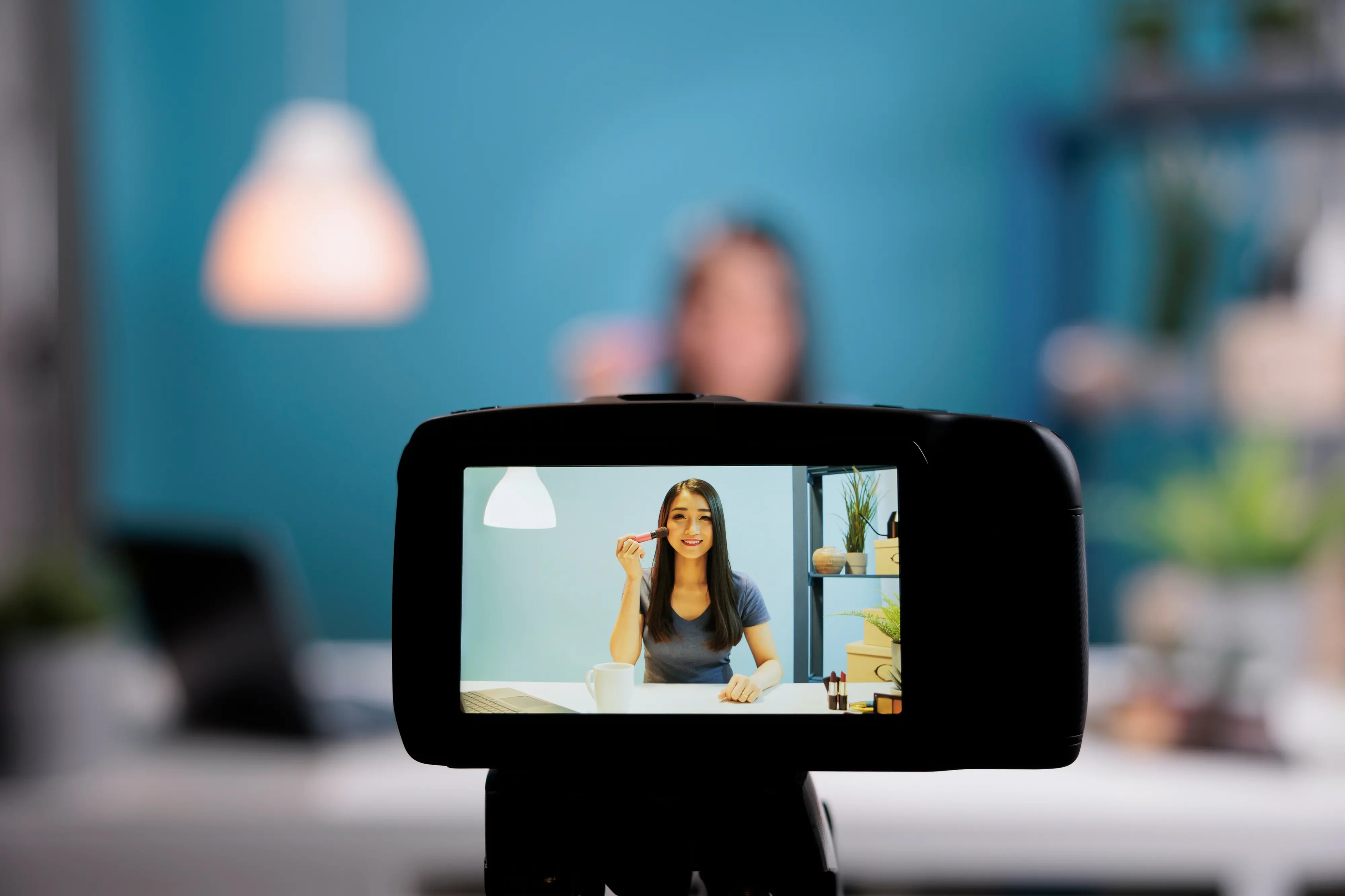
Microsoft has introduced a new Windows 11 feature that allows users to turn their Android smartphones into wireless webcams for PCs. The feature removes the need for third-party applications, which can sometimes raise privacy and security concerns, while also helping users avoid spending extra money on a separate webcam.
The update could be useful for users looking for better video quality during meetings, livestreams and video calls. Most modern smartphones come with camera systems that are often better than the built-in webcams found in many laptops, making them a practical alternative.
Before getting started, users need to make sure their devices meet a few requirements.
Requirements before getting started:
- Your PC must be running Windows 11 or a later version.
- Your Android smartphone must be running Android 10 or later.
- The Link to Windows app on your Android phone should be version 1.24022.0 or newer.
Steps to set up your Android phone as a webcam:
- Download the Link to Windows app on your Android phone.
- Open the Phone Link app on your PC and sign in.
- The app will display a QR code after you sign in.
- Scan the QR code using the Link to Windows app on your Android phone to connect the devices wirelessly.
- You can also connect your Android phone directly to your Windows PC through Bluetooth.
- Once the devices are connected, open the Settings app on your PC.
- Go to Bluetooth and devices and select your Android phone from the list.
- A new screen will open. Turn on the Use device as a camera option if it is not already enabled.
- Open the Manage cameras section in Settings.
- Your Android phone should appear under connected cameras.
- Select the device name to open the camera feed.
- If the screen appears blank, select Resend Permission Request and allow the required permission on your Android phone.
You can then start using your Android smartphone as a webcam on Windows 11.
Why use an Android phone as a webcam?
Smartphones often offer better camera quality than laptop webcams.
Users do not need to buy an external webcam.
Wireless connectivity reduces cable clutter.
Phones can be placed more freely for better camera angles and framing.
It can also be useful as a secondary camera for livestreams and content creation.