ChatGPT keeps changing your face while editing photos? Save these 5 prompts
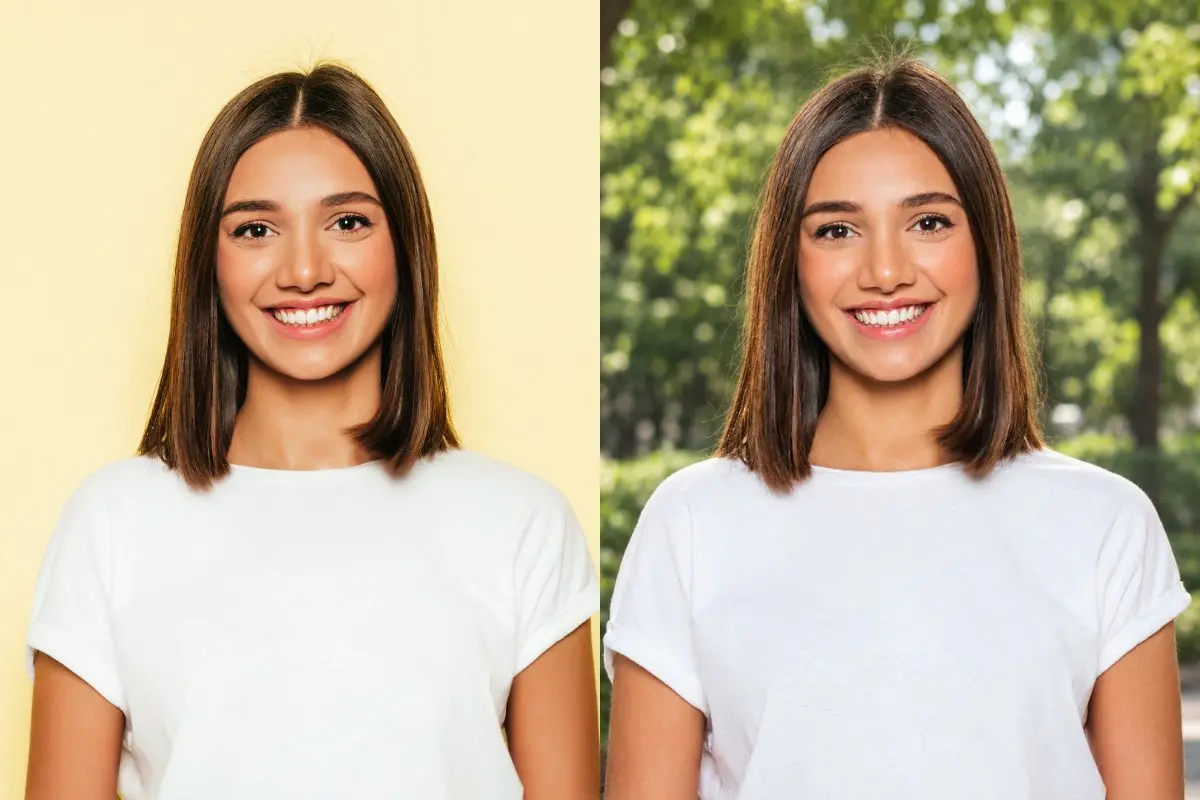
Ever tried editing a photo with ChatGPT, only to find that your face looks completely different? These prompts can help you fix that, whether you want to change your pose, improve the picture quality or remove a messy background.
You can use each prompt separately or combine them depending on the edit you want.
Identitylock: Preserve original facial features and identity
Edit the uploaded photo while preserving my exact identity. Keep my face, facial features, face shape, eyes, nose, lips, eyebrows, skin tone, natural skin texture, and all distinctive facial details unchanged. Do not beautify, reshape, smooth, or regenerate my face. Keep me recognisable as the same person in the original photograph. Make only the specific edits I request, leaving everything else untouched. The final image must look natural and photorealistic, not AI-generated.
Best for: Outfit changes, background changes, photo enhancement and other edits where your face must remain the same.
Poseonly: Change only your pose
Change only my body pose in the uploaded photo to [describe the desired pose]. Preserve my exact face, identity, facial expression, hairstyle, hair texture, hair colour, clothing, accessories, and body proportions. Do not change my facial features, makeup, outfit design, fabric, colours, or personal appearance. Adjust the body position naturally, with realistic anatomy, hands, fingers, and posture. Keep the original photographic style and make the result look like a real photograph of me. Everything other than the pose must remain unchanged.
Pose examples you can insert:
- Standing naturally with one hand resting on my waist.
- Sitting elegantly with my legs crossed.
- Looking over my shoulder while keeping my face recognisable.
- Walking naturally towards the camera.
- Posing with both hands gently placed in front of me.
Studioquality: Professional photo enhancement
Enhance the uploaded photo to professional studio photography quality. Improve the lighting, exposure, sharpness, contrast, colour balance, and overall image clarity while preserving my exact identity and natural appearance. Use soft, flattering, realistic lighting with balanced highlights and shadows. Retain natural skin texture, realistic hair details, accurate skin tone, and the original clothing colours. Reduce distracting image noise and correct minor lighting issues without excessive retouching. Do not alter my face, facial structure, body shape, hairstyle, clothing, or expression. The final result should look like a high-quality photograph taken with a professional camera, not an AI-generated image.
Best for: Portraits, professional headshots, social media photos and indoor photos with poor lighting.
Upscale: Improve resolution and clarity
Upscale the uploaded image to a higher resolution while preserving the original photograph and my exact identity. Improve clarity, sharpness, fine details, and image quality. Recover visible details in the hair, eyes, clothing, and background without inventing features or changing the original appearance. Reduce pixelation, compression artefacts, and unwanted noise. Preserve my face shape, facial features, skin tone, natural skin texture, body proportions, clothing, colours, and composition. Do not apply beauty filters, excessive sharpening, artificial skin smoothing, or creative alterations. Keep the result photorealistic and faithful to the original image.
Best for: Blurry photos, low-resolution images, old digital photographs and pictures that look pixelated when enlarged.
Note: Upscaling can improve the appearance of an image, but it cannot reliably recover details that were never captured in the original.
Cleanup: Remove or clean up the background
Clean up the uploaded photo by removing the existing background and replacing it with [describe your desired background, or specify a plain white background]. Preserve my exact identity, face, facial features, hairstyle, hair strands, skin tone, body shape, clothing, accessories, and pose. Carefully separate my hair and body from the original background, avoiding rough edges, halos, missing hair strands, or cut-out effects. Use natural lighting and realistic shadows so I blend seamlessly into the new background. Keep the subject sharp and the result clean, polished, and photorealistic. Do not alter my face, outfit, or body in any way.
Background options you can insert:
- A plain white studio background.
- A soft beige backdrop with natural studio lighting.
- A clean, modern office interior.
- A natural outdoor setting with soft greenery.
- A simple light grey background suitable for a professional headshot.
- Remove distracting objects and clutter while keeping the original background.
If you want to remove the background without replacing it, change the first sentence to: Remove the existing background completely and return the subject on a transparent background, preserving all fine hair and clothing edges.
How to get the best results
- Upload the original photo first, then paste the relevant prompt.
- Replace the instructions in square brackets with your exact requirements.
- For pose changes, provide a reference photo of the pose if possible.
- If your face changes during editing, follow up with: “Restore my face to match the original uploaded photograph exactly. Keep the current edits to the pose, background, and lighting, but do not change any other features.”
- Make one major change at a time if you need tighter control over the result.
- Start with identitylock and then add the specific edit you want. It makes your most important requirement clear before asking GPT to change anything else.