How to transfer data from iPhone to Android
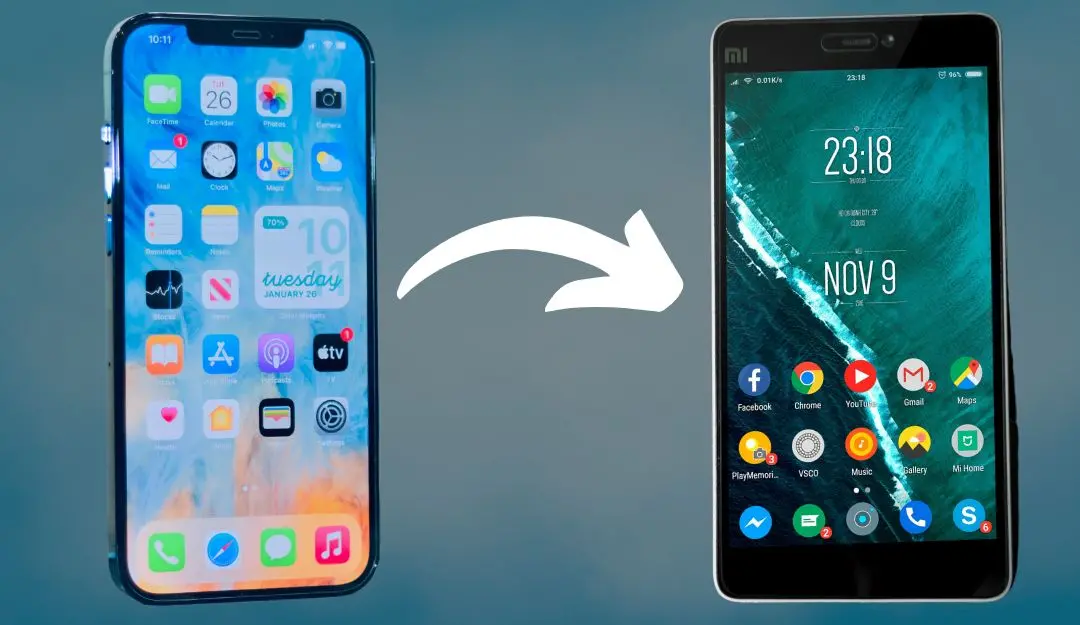
Moving from an iPhone to an Android device may seem daunting, but with the right approach, the process is straightforward. By following these steps, you can ensure a smooth transfer of all your essential data without any hassle.
Step 1: Prepare your devices
Before starting, ensure that both your iPhone and Android phone are turned on and charged, ideally at 80% or more.
Turn off FaceTime by navigating to Settings > FaceTime > Turn Off FaceTime. Similarly, disable iMessage by going to Settings > Messages > Turn Off iMessage and deregistering it.
Step 2: Activate your SIM & sign in
Insert and activate your SIM card by following the on-screen instructions. Once activated, sign in to your Google Account and complete the biometric setup on your Android device.
Step 3: Connect both devices using a cable
Your new Android phone will prompt you to connect your iPhone using a cable—this may be a Lightning to USB-C or USB-C to USB-C cable.
Alternatively, some phones offer a wireless transfer option. However, using a cable is recommended for a more comprehensive data transfer. If a cable isn’t available, you can use the Android Switch app to move data wirelessly.
Step 4: Choose the data you want to transfer
Once connected, your Android phone will guide you through selecting the types of data you want to transfer. This may include contacts, photos, messages, and other essential files. After making your selection, tap “Copy” at the bottom of the screen to start the transfer.
Step 5: Explore your new android phone
That’s it! While your data is being transferred, take some time to familiarise yourself with your new phone’s features.
Note: It may take up to 48 hours for some messages to fully appear after the transfer is complete.
Moving from an iPhone to an Android device doesn’t have to be complicated. By carefully following these steps, you can transfer your important data securely and without any hassle. Whether you prefer using a cable for a complete transfer or a wireless option for convenience, this guide ensures that your transition is as smooth as possible.